
This article explains how to add parents manually in the Studio Portal. You'll learn how to manage parent and student information, and you can use bulk upload for faster data entry.
1. Introduction To Adding Parents
In this video, we'll walk through how to add a parent manually in the Studio Portal.
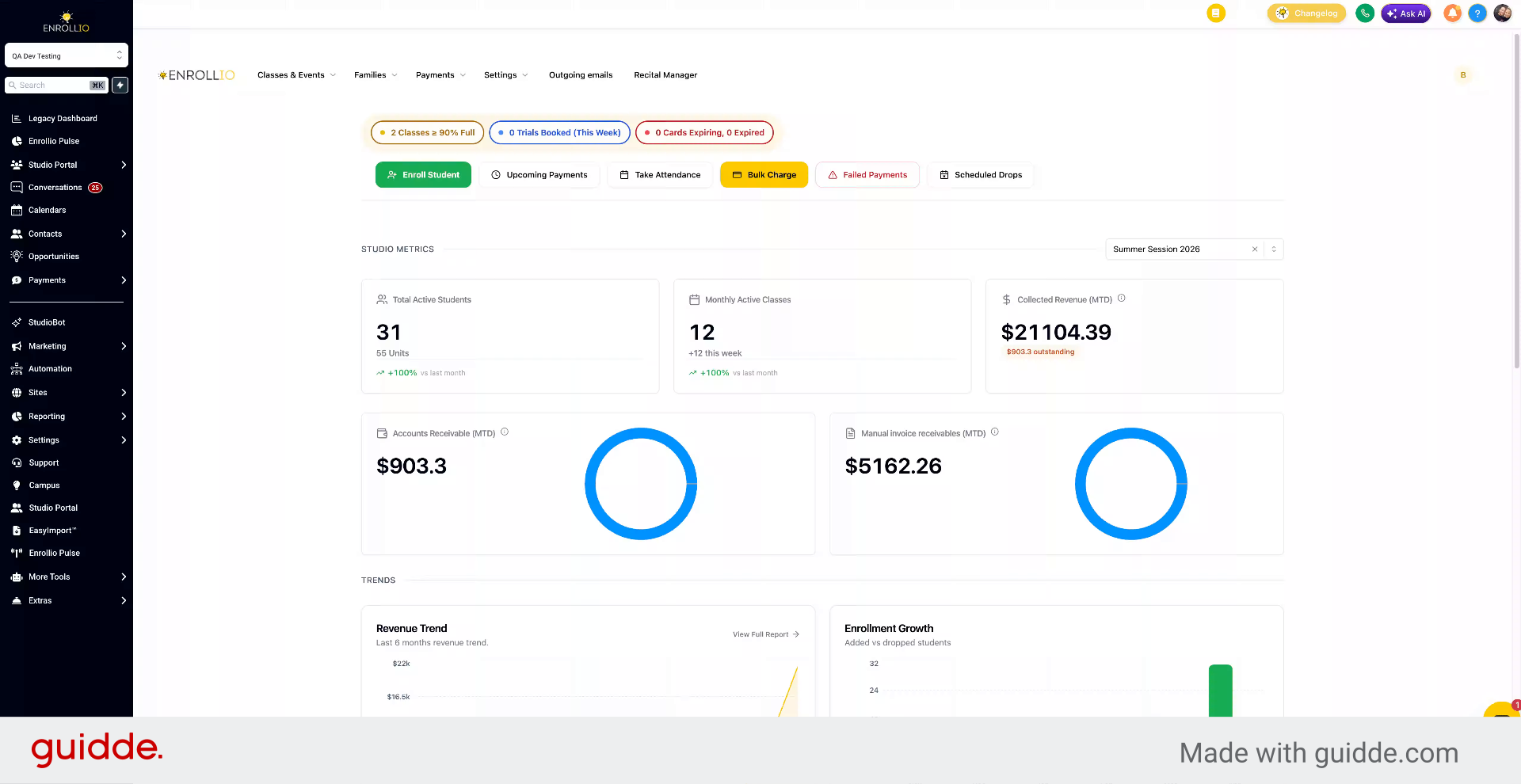
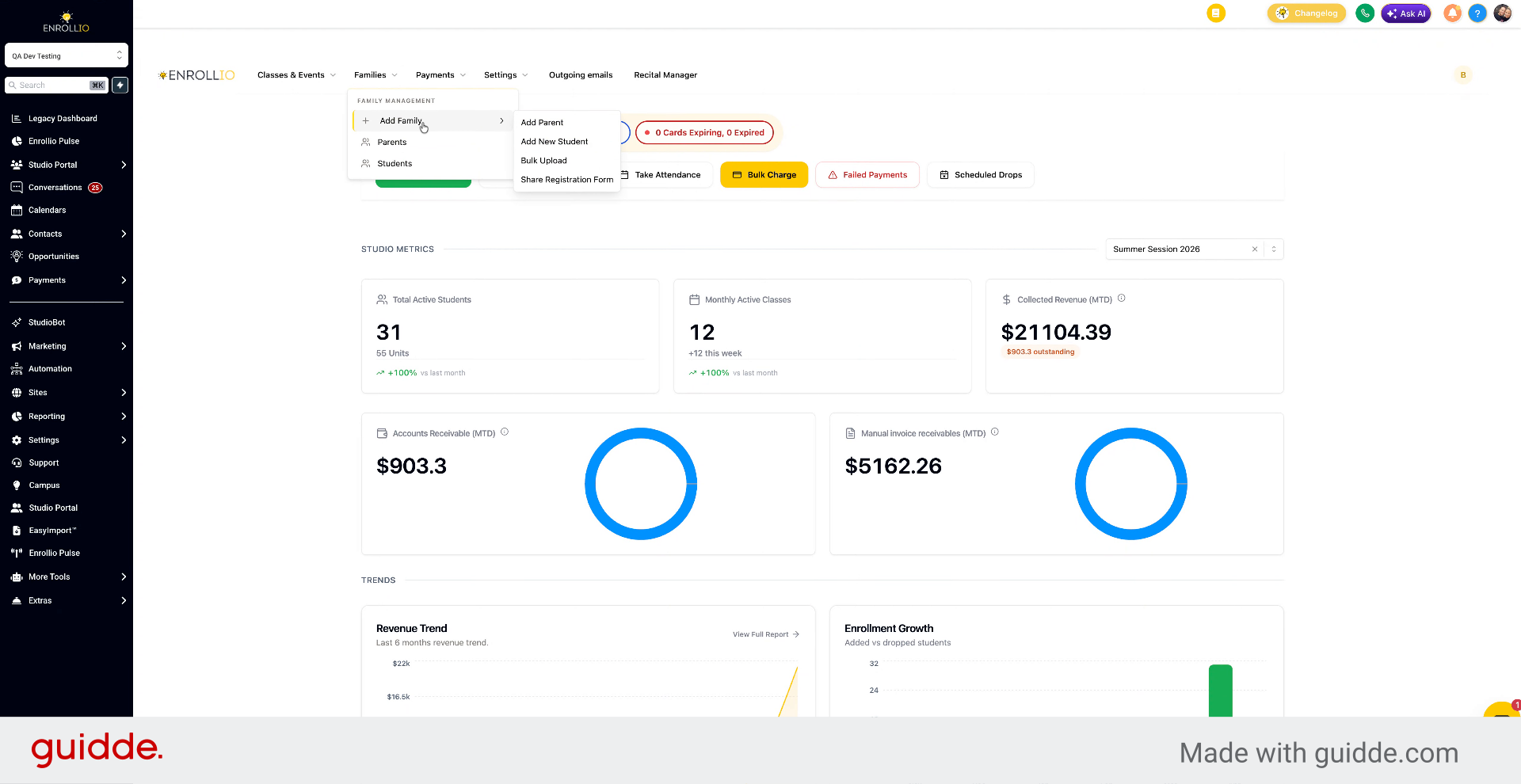
2. Go To Add Parent Menu
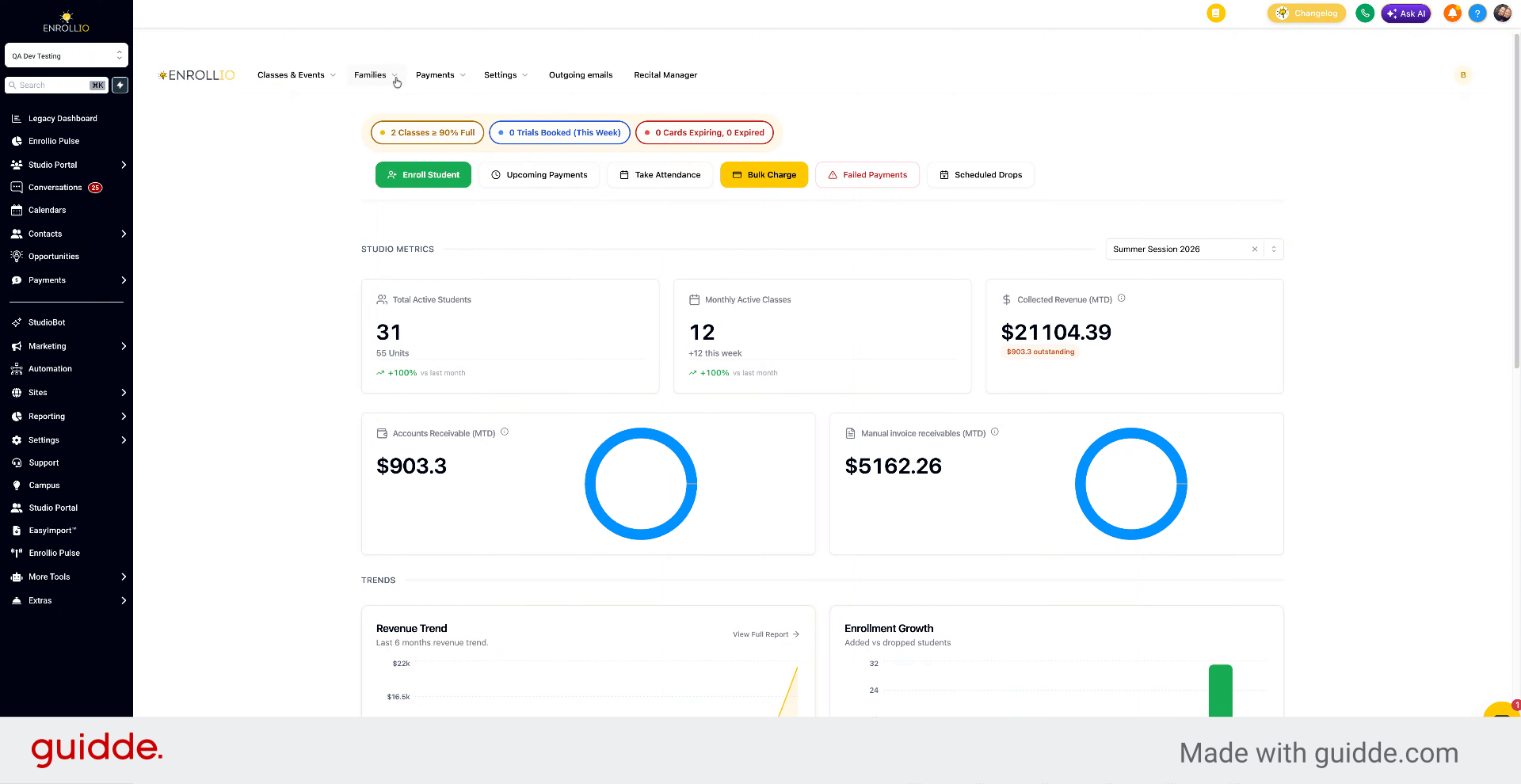
At the top, under Families, select Add Family and then Add Parent. You can search for existing contacts by typing in their name or email from the CRM.
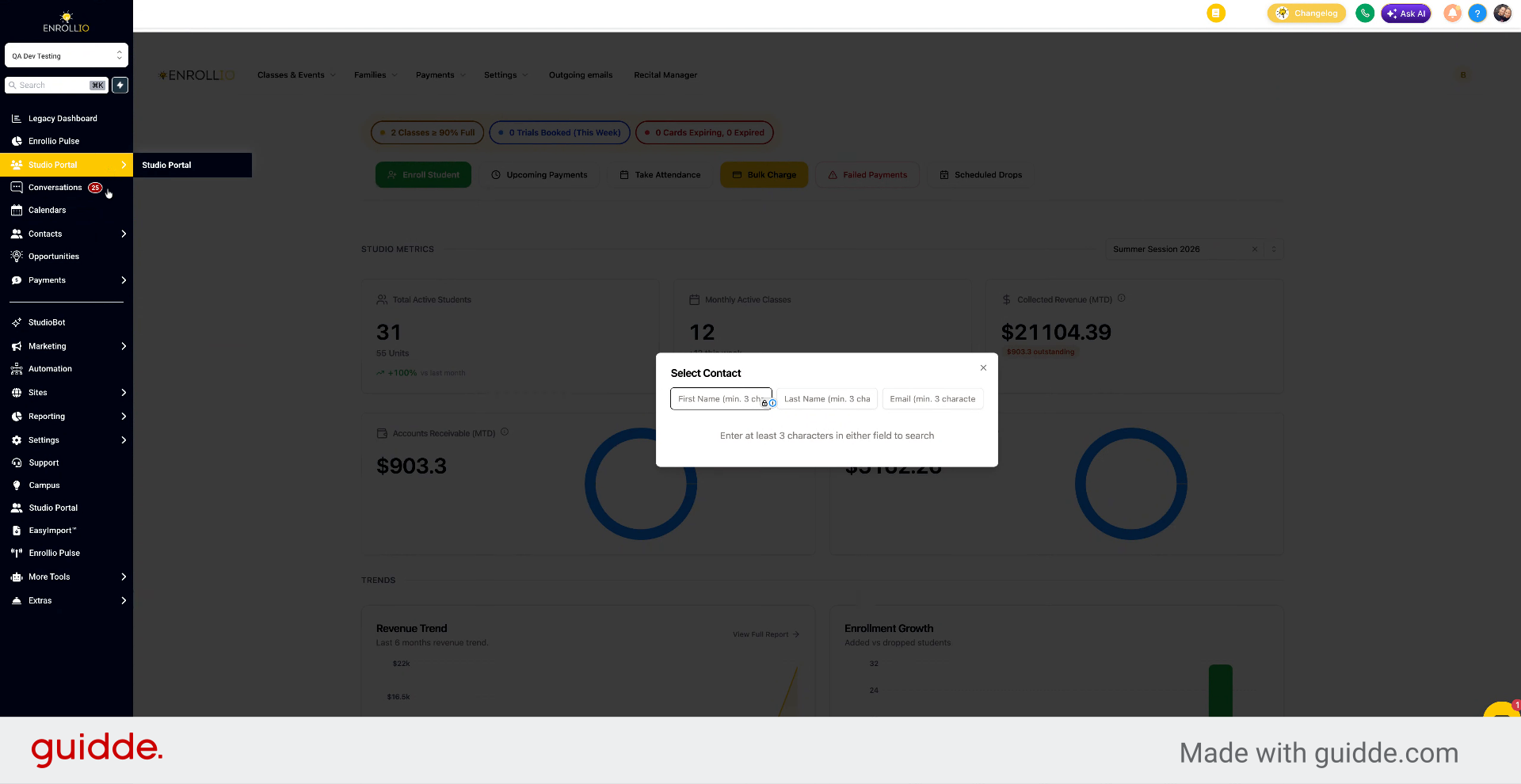
3. Select Existing CRM Contact
If your contacts are already in the CRM, you can select that contact here.
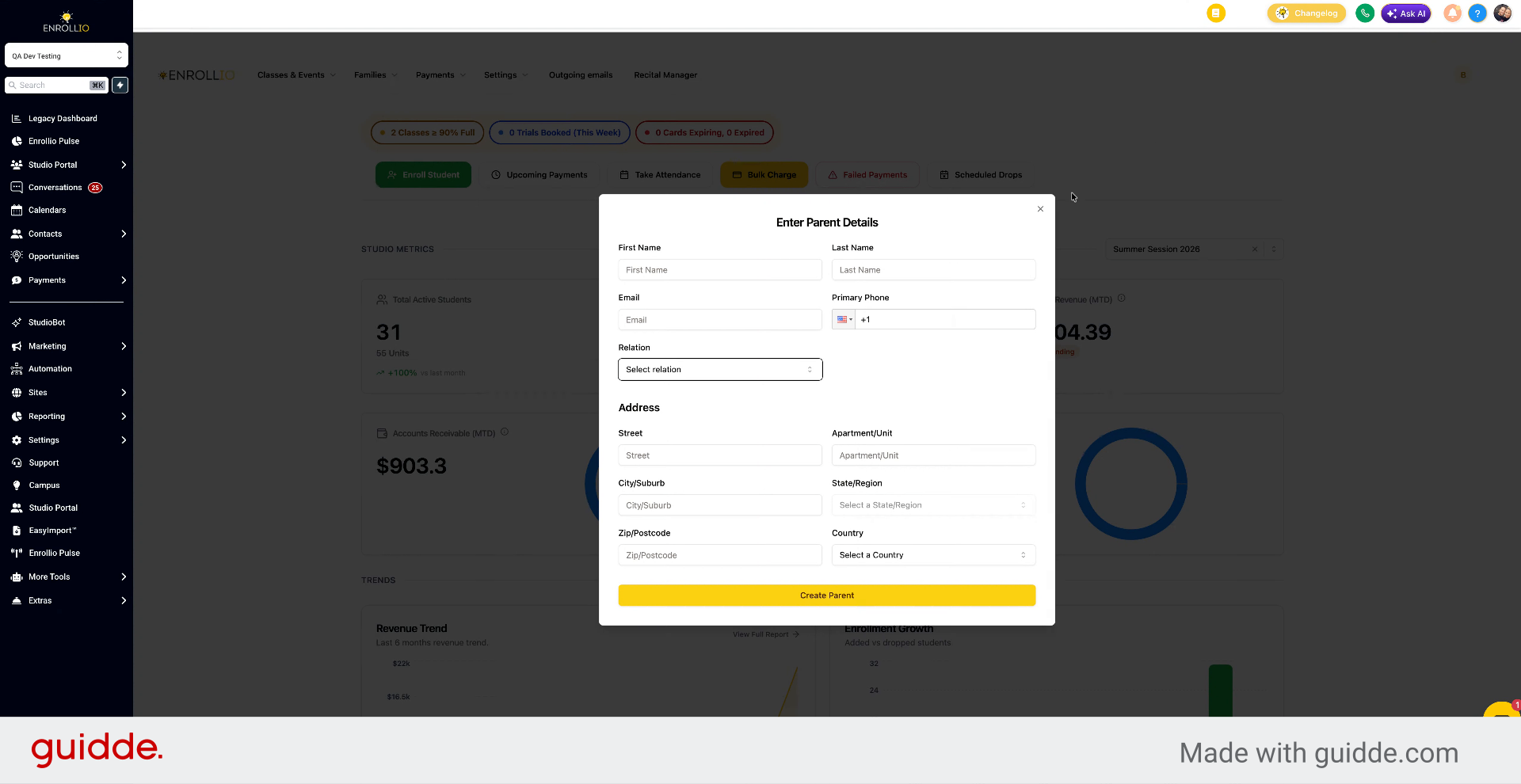
4. Enter Parent Information Manually
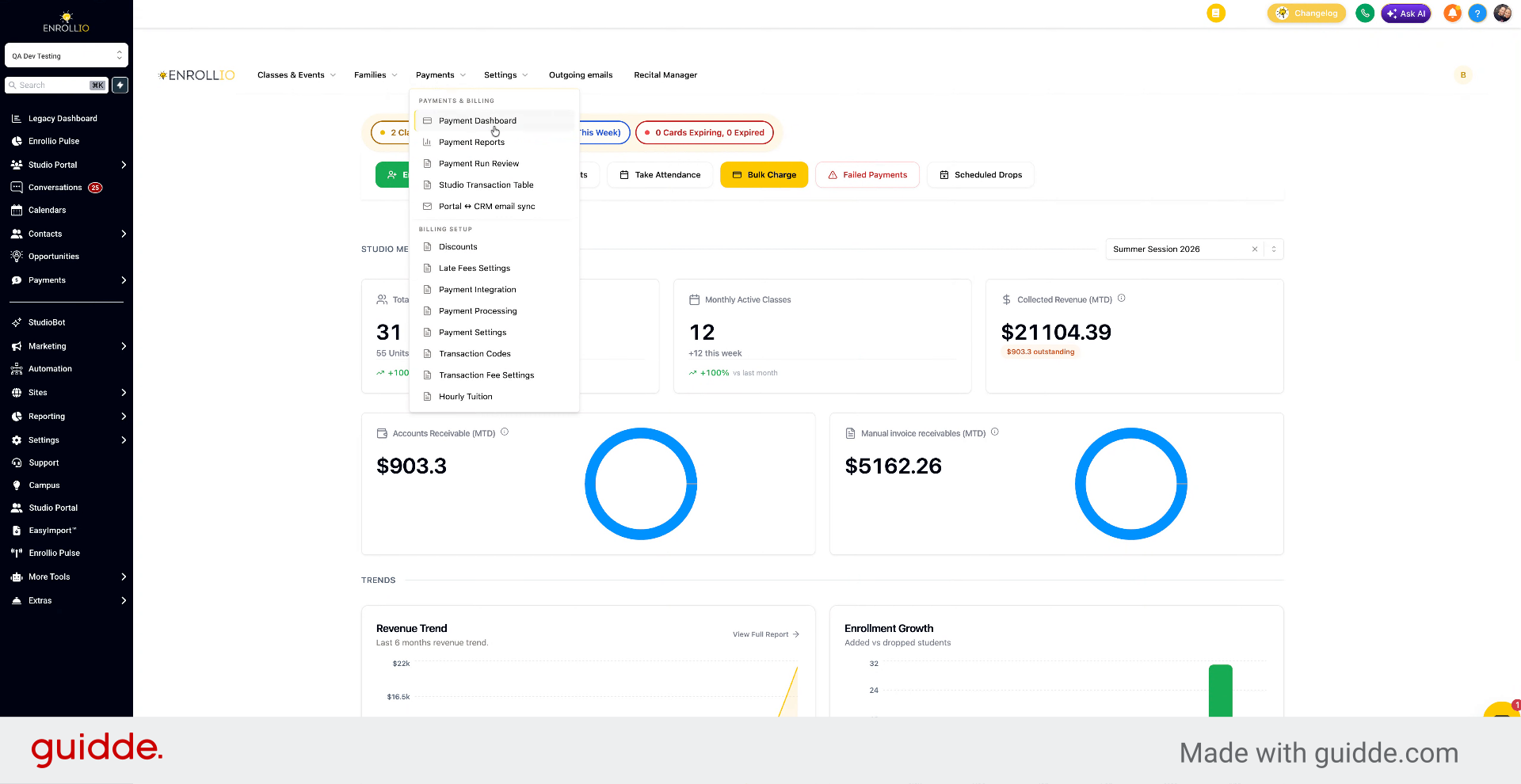
To add a parent manually, go to Families, select Add Parent, then Manual Entry. From here you can type in the parent's information, their relationship to the student, and their address.
5. Add Students To Parent
Once you've created a parent, you can add students to that parent. Parents can also add students themselves when they log into the parent portal.
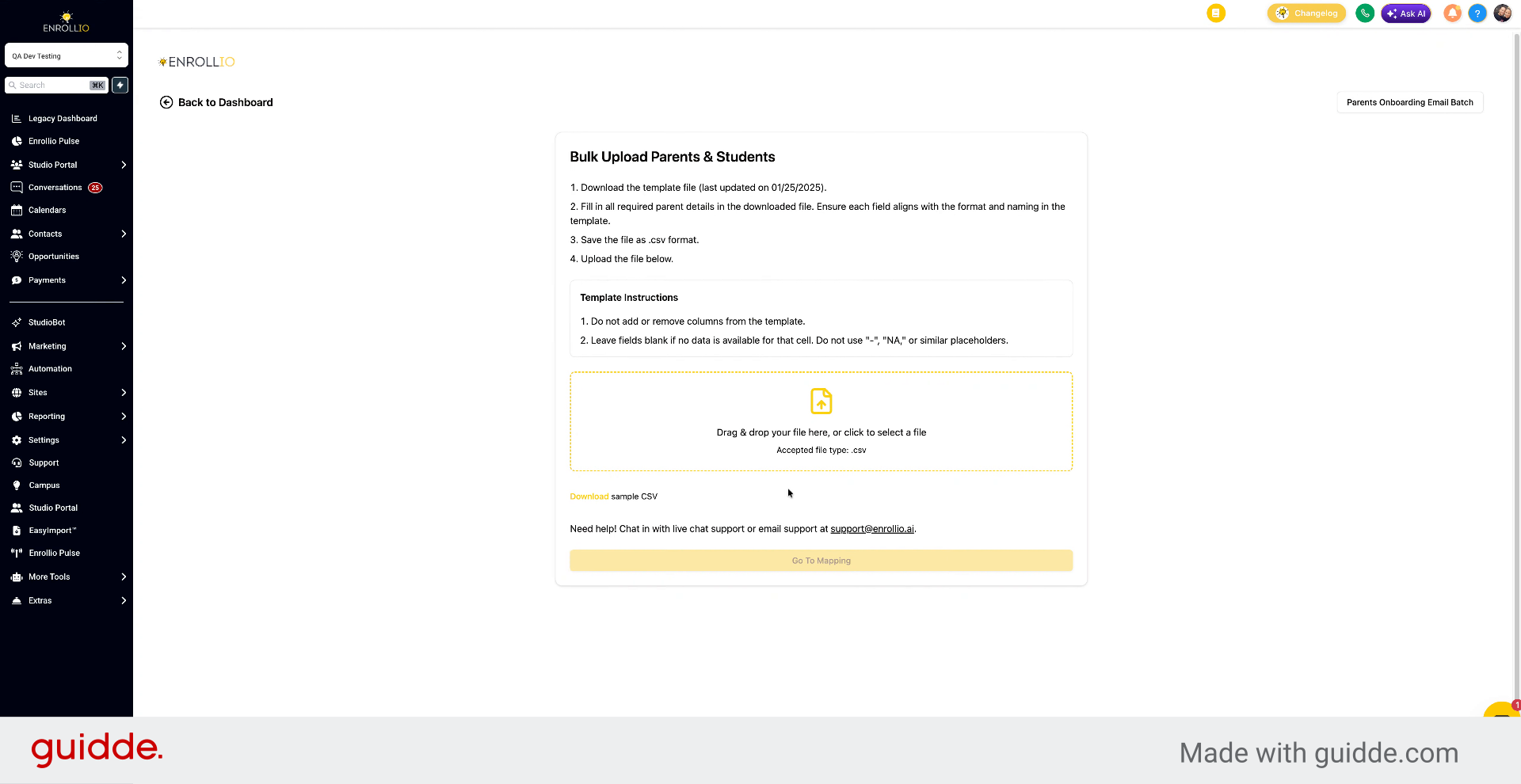
6. Bulk Upload Families Using CSV
You also have the option to do a bulk upload. Click Bulk Upload to use our CSV template. Add all your families to the template, and you can quickly upload the parents and students.
7. Contact Support For Assistance
If you need help at any time, reach out to our live chat support team or email us at support@enrollio.ai.
You now know how to add parents manually or via bulk upload in the Studio Portal and how to manage student associations.