
This article explains how to create a parent account using both the Studio Portal and the Parent Portal.
1. Introduction
You'll learn the steps to add a parent manually or share the portal link for account creation.
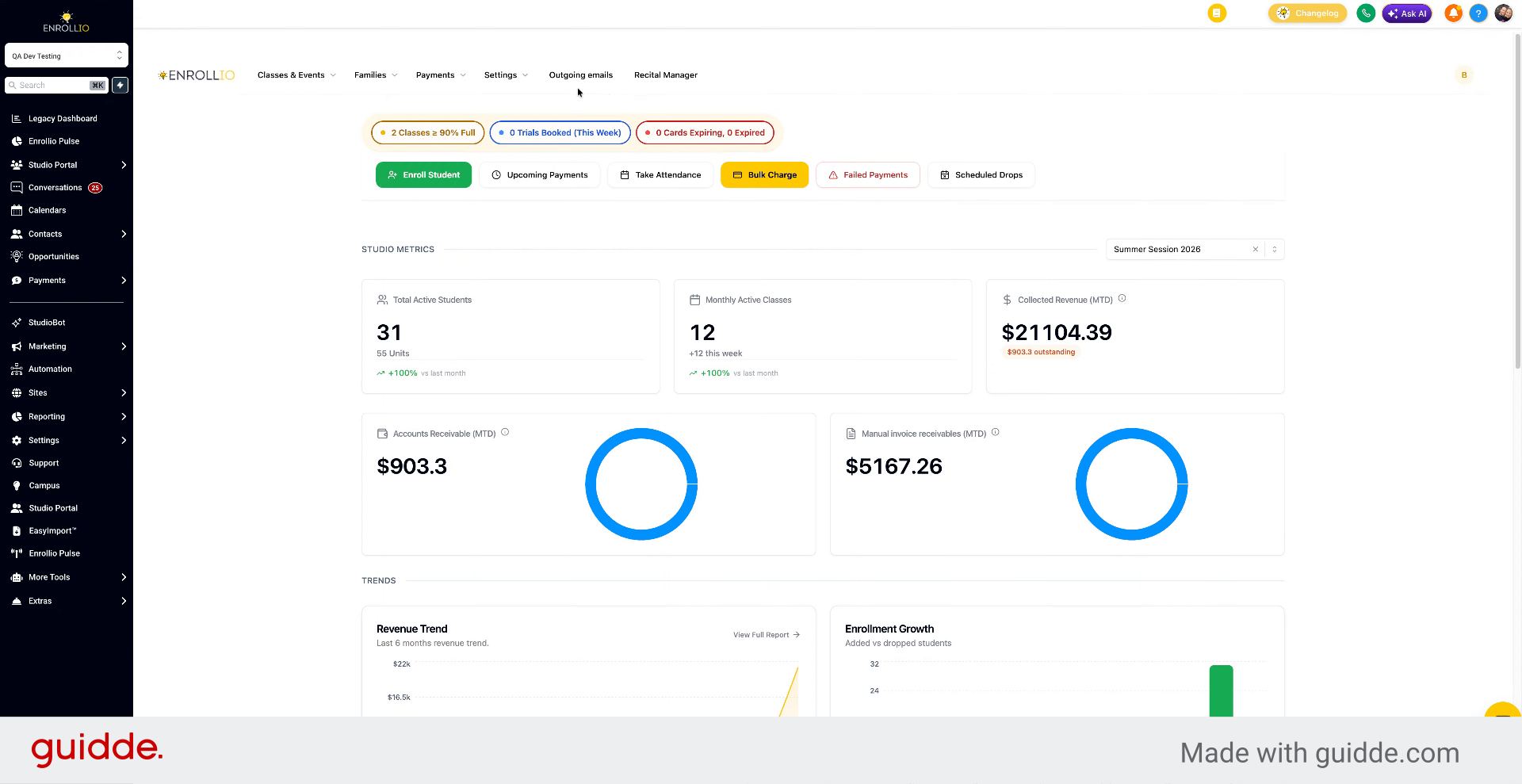
2. Add Parent in Studio Portal
To create a parent account from the Studio Portal, go to Families, then Add Family, and click Add Parent. Here you can search for an existing contact in the CRM.
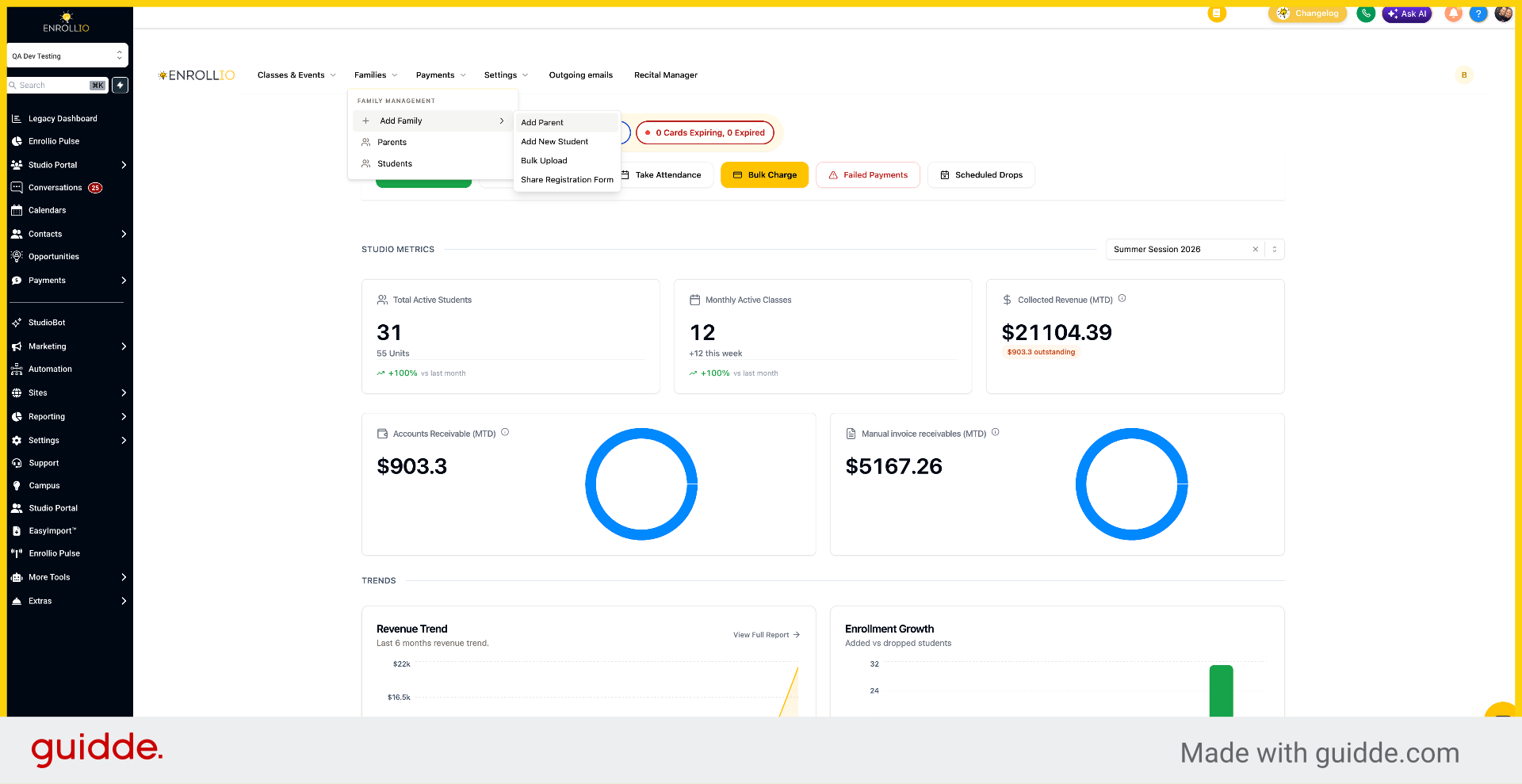
3. Enter Parent Details Manually
Alternatively, you can click Manual Entry to enter parent details manually.
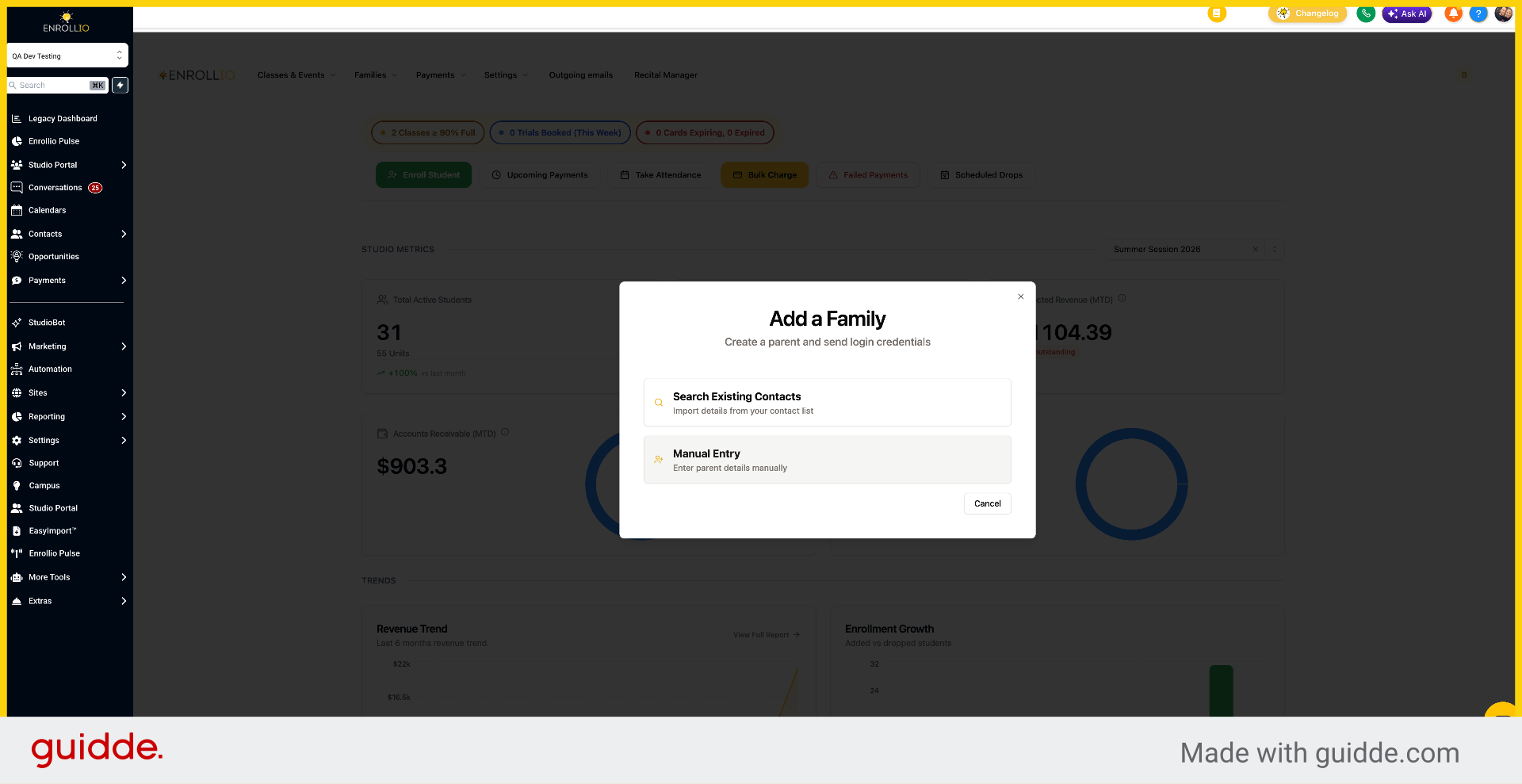
4. Access Manual Entry Option
Click here to proceed with manual entry of the parent information.
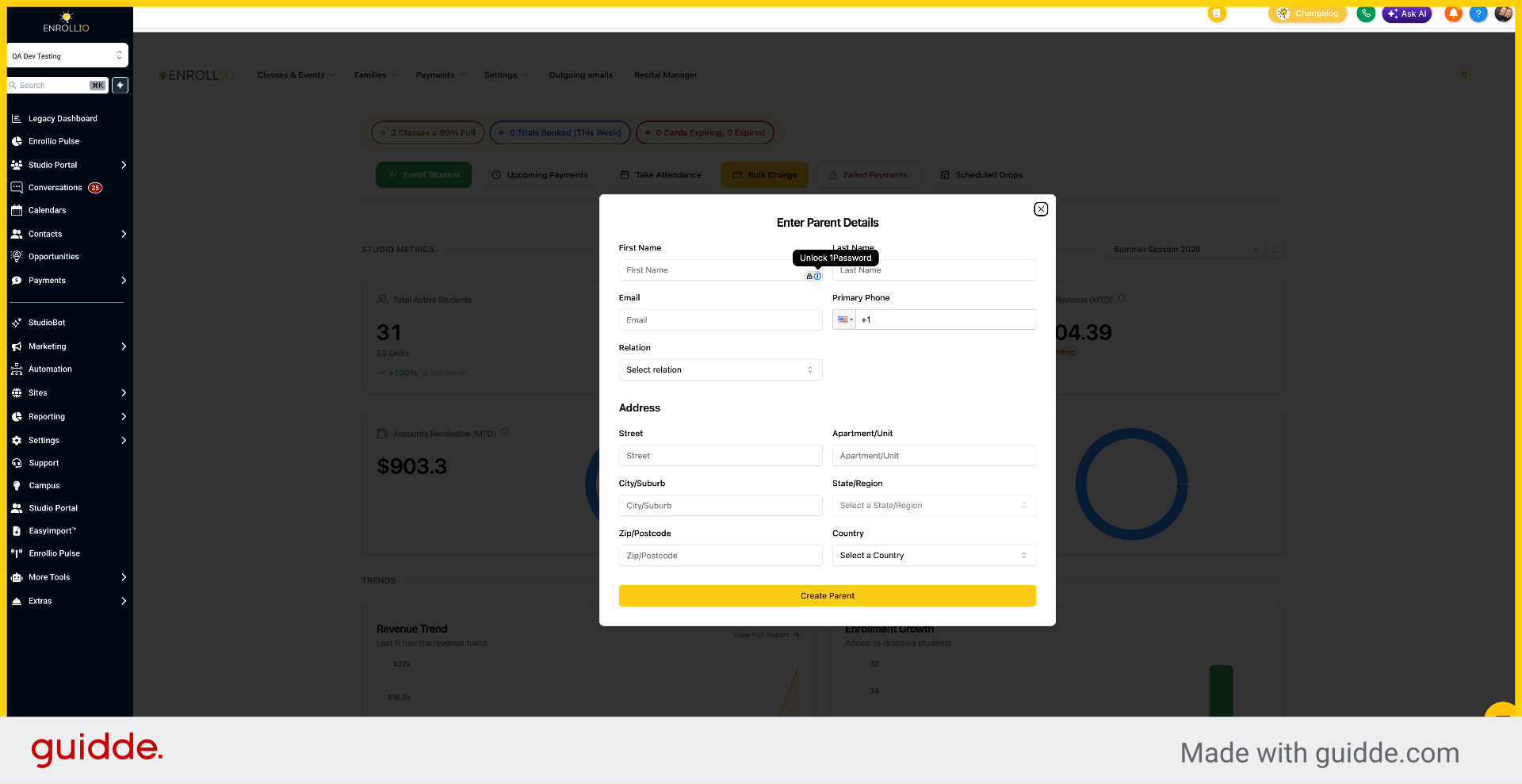
5. Switch to Parent Portal
The second option is to go to Settings and share the Parent Portal link. When the family goes to that link, they'll be able to create an account.
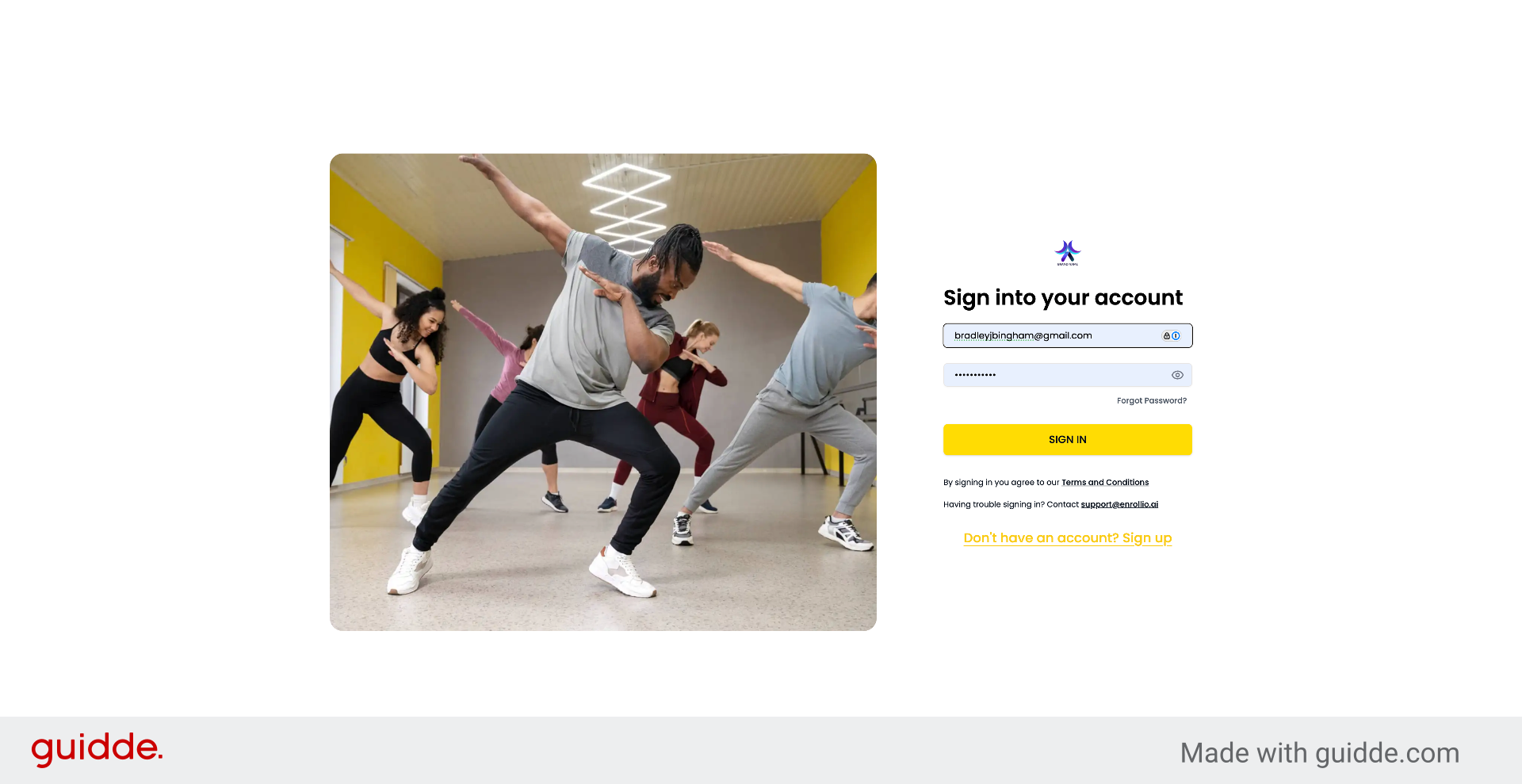
6. Sign Up for Parent Account
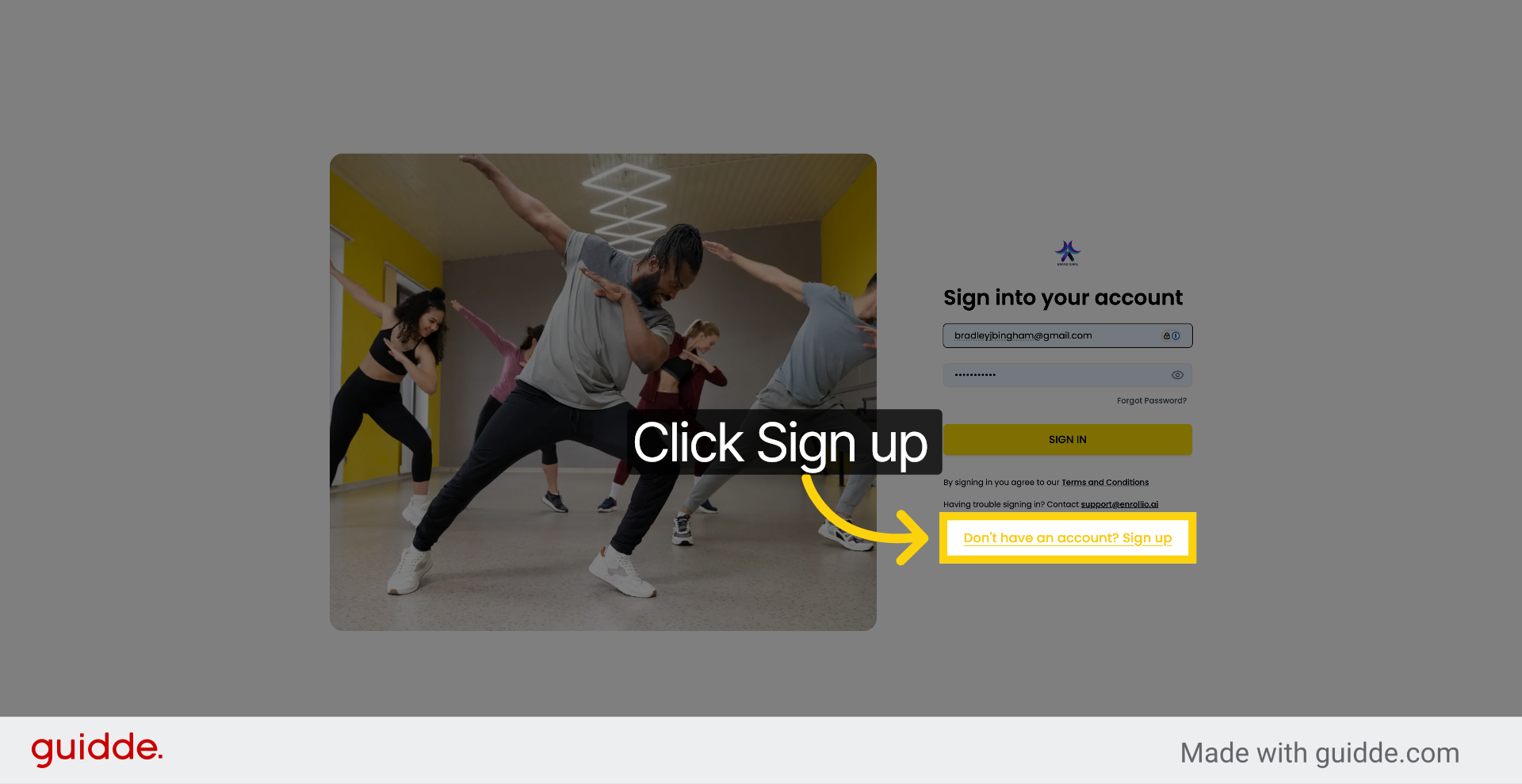
If you click Don't have an account? Sign up, the parent can create that account, log in, and start signing up for classes.
This article covered how to create a parent account by adding a parent manually in the Studio Portal or by sharing the Parent Portal link for families to sign up themselves.