
This article explains how to delete a class or event in the Enrollio portal. You'll learn the steps to select, delete, and understand the impact of removing a class or event.
1. Pause Before Starting
Pause briefly before beginning the instructions to prepare for the process.
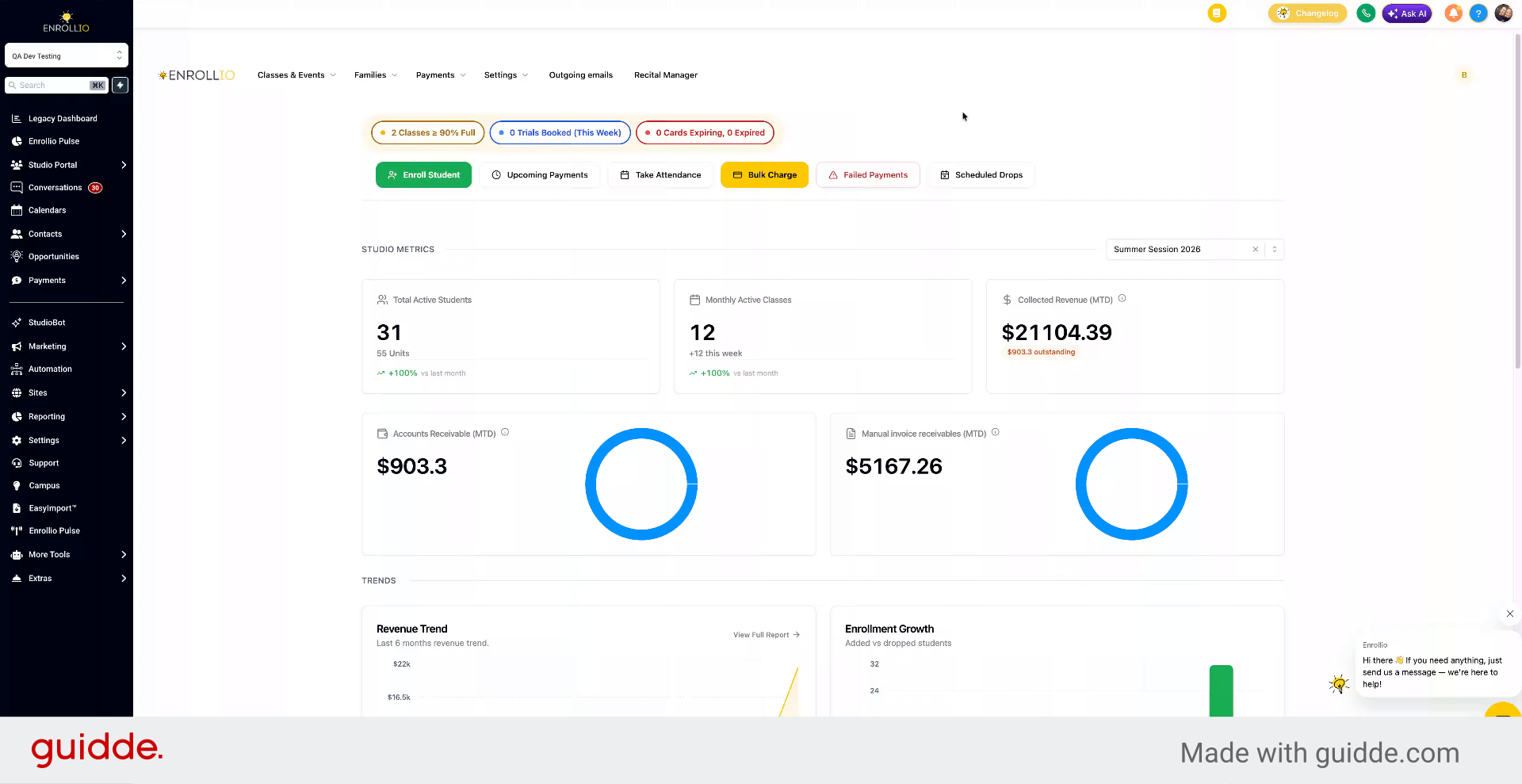
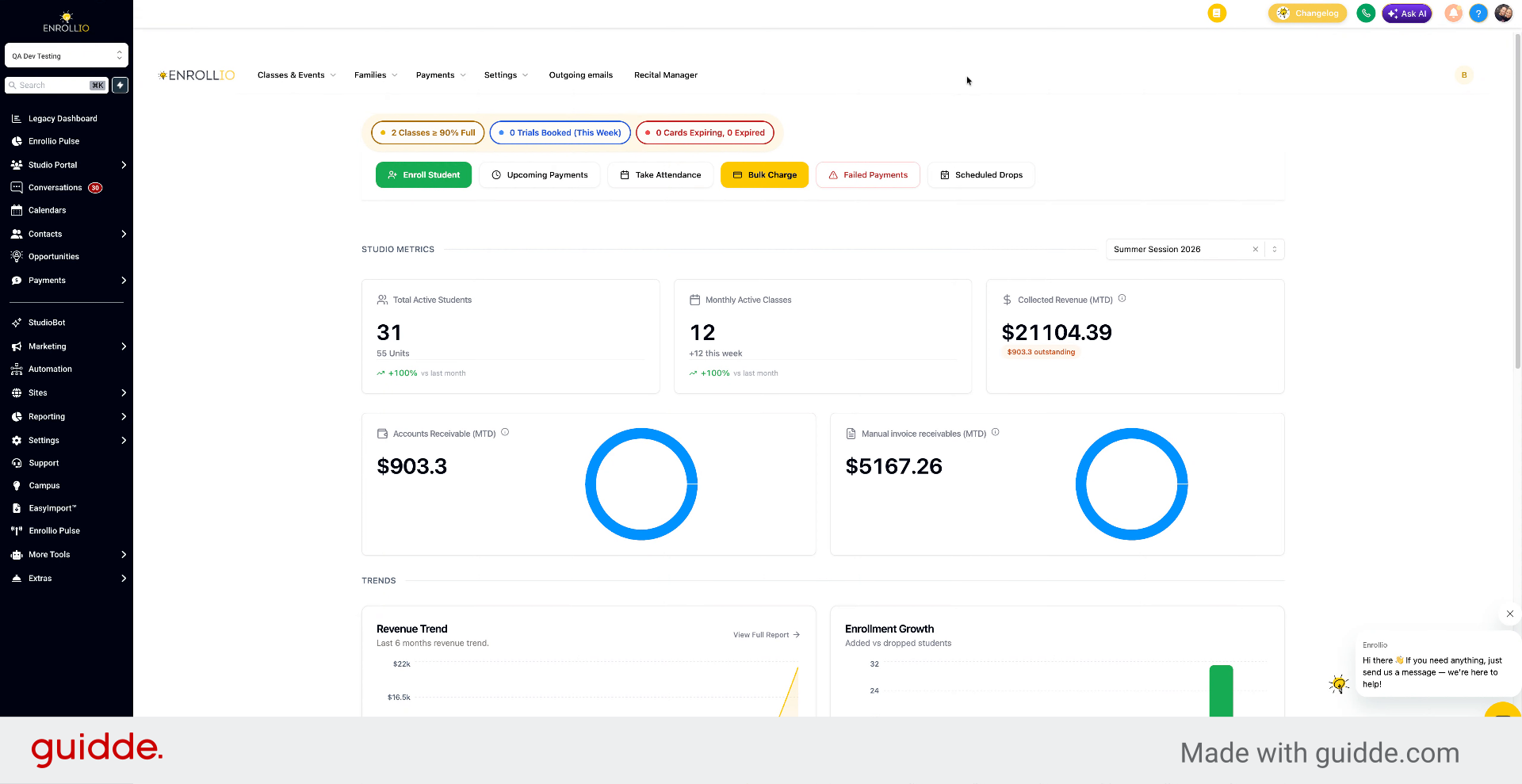
2. Select Classes or Events
To delete or cancel a class, go to Classes and Events, select all classes or events, and then select the class you want to delete.
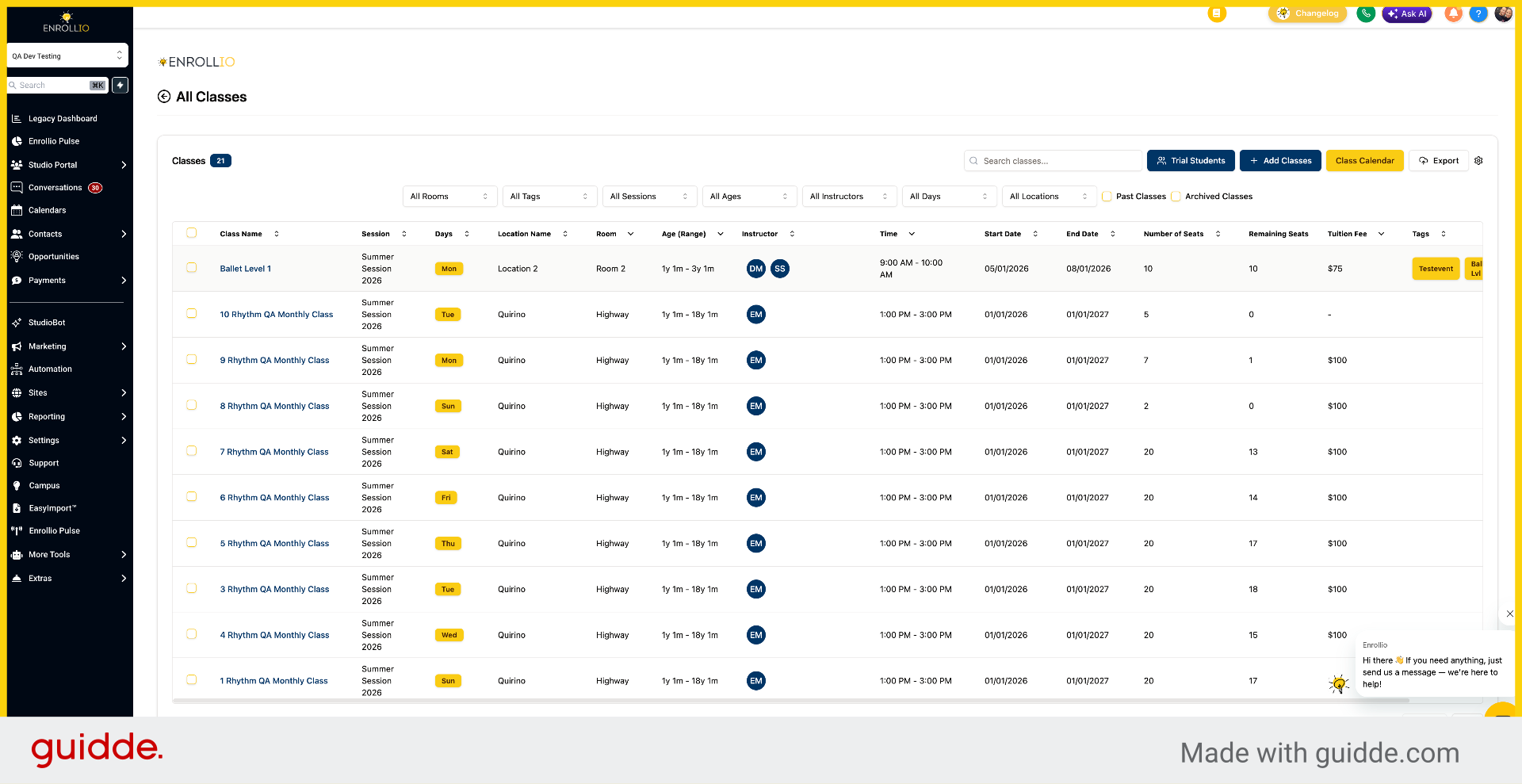
3. Select Class Row
Click the Select row option to highlight the specific class you want to manage.
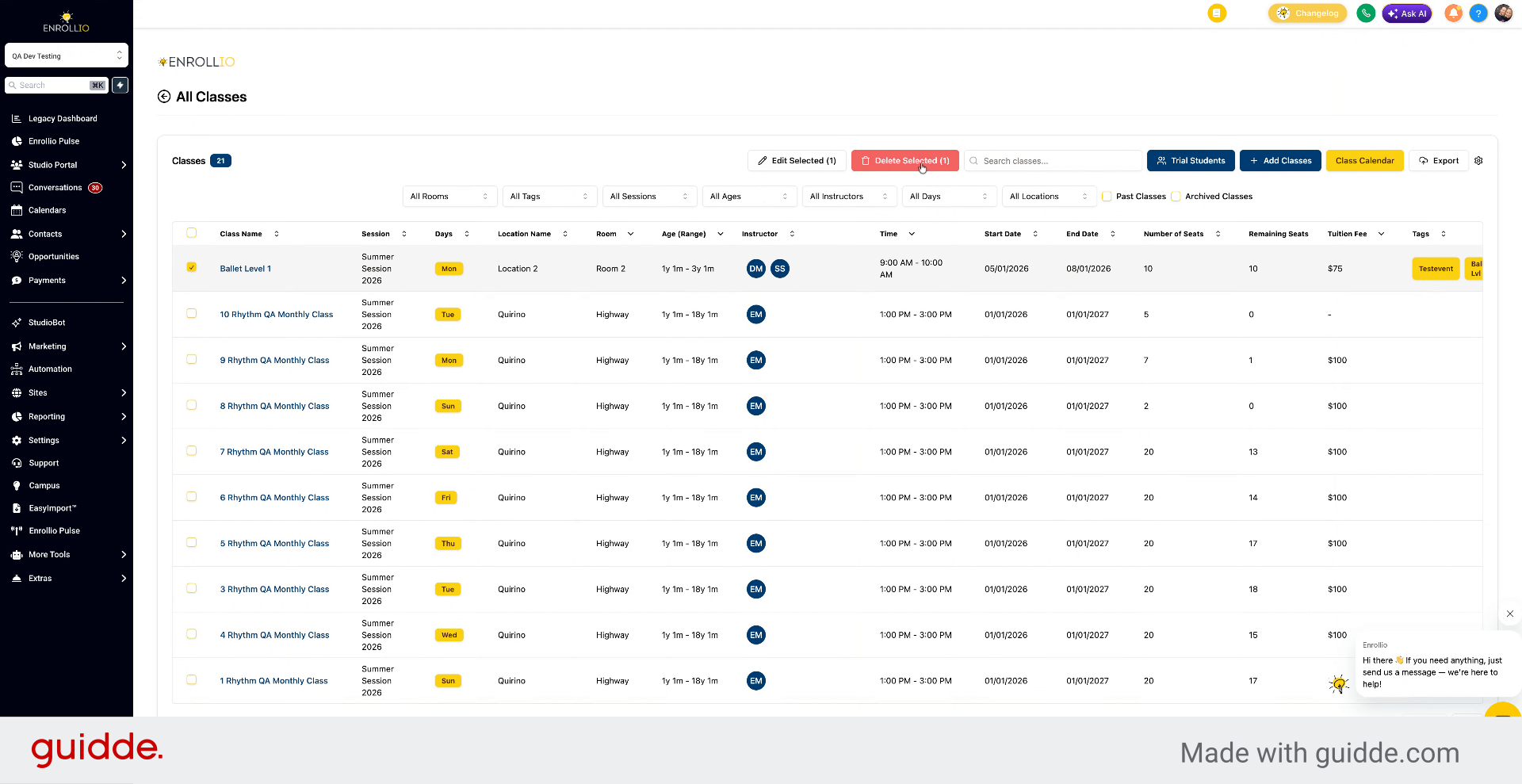
4. Confirm Deletion
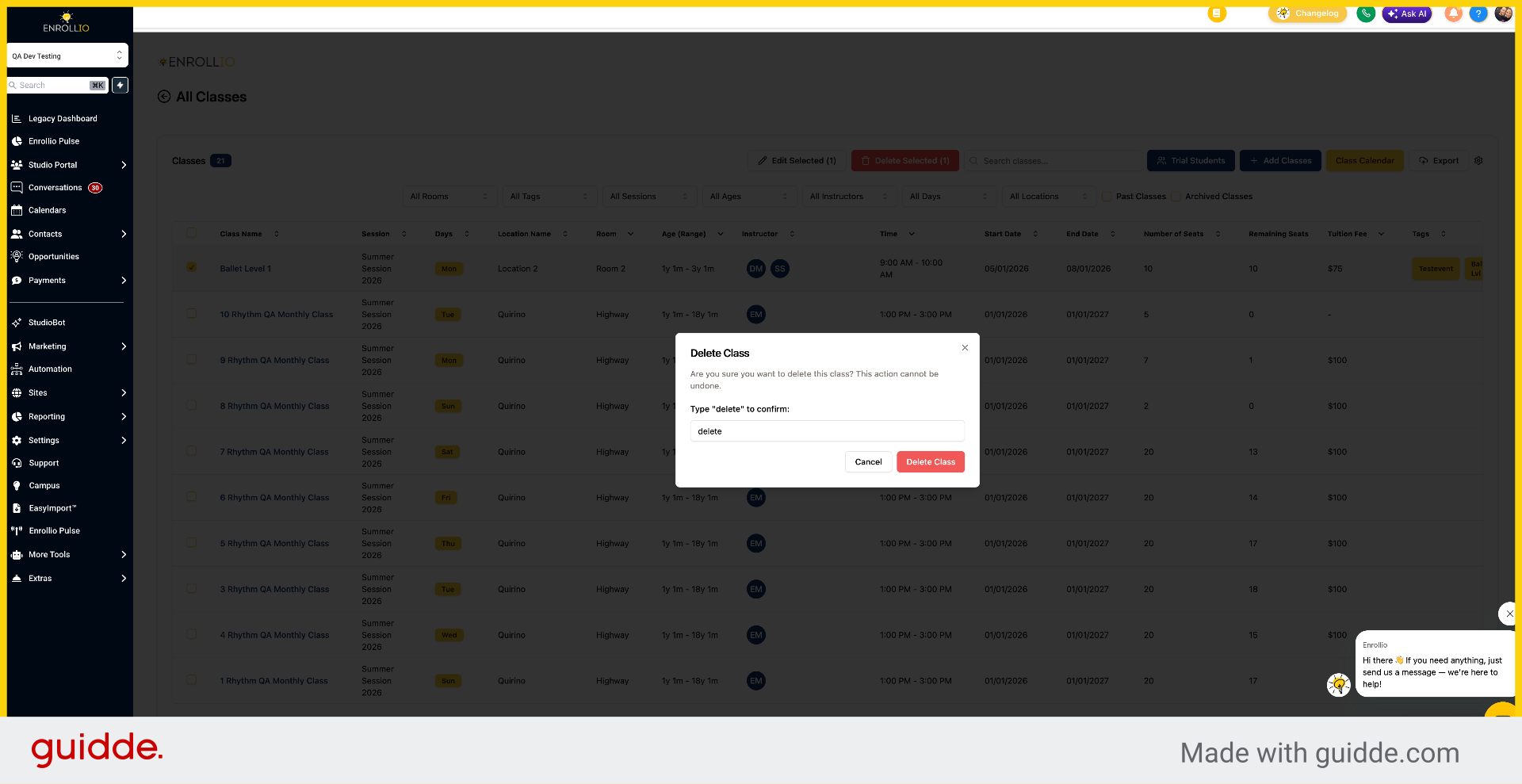
Click Delete Selected, then type "delete" to confirm.
5. Delete Class
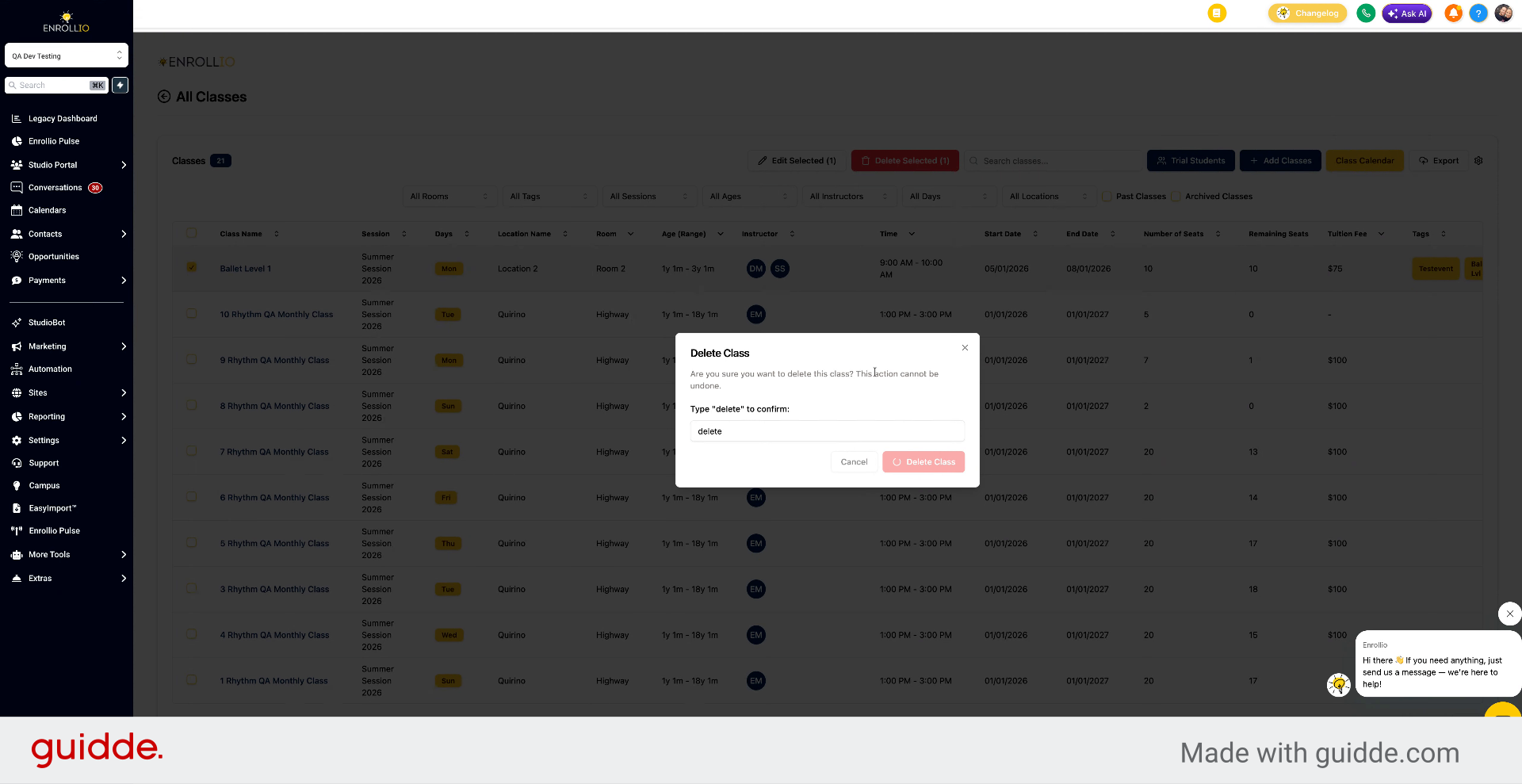
Click the Delete Class button to remove the selected class from the system.
6. Understand Class Removal Effects
The class will be deleted from the studio portal and will no longer show in the parent portal.
This article explained how to delete a class or event within the Enrollio portal, including selecting the class, confirming deletion, and understanding the removal effects.